A hands-on 2020 review of Maze's Figma integration for no-code usability testing, including missions, heatmaps, misclicks, versioning, pricing, strengths, and limitations.
The strengths and weaknesses of Maze
Hello. I am Hyo, a product designer at Buzzvil. Today I want to talk about Maze, a user-research tool. This article may be useful if you are interested in user research and data-informed UX improvement.
Story
At Buzzvil, we use the UI tool Figma to create service prototypes and share them across the company. As our prototypes became more sophisticated, I thought that quantifying how non-designers used them could help us make meaningful improvements faster. While looking for an approach, I heard that Maze had recently added Figma integration and decided to test it. Here are some of the results.
Maze?

Maze measures and reports user-research flow data through UI design tools such as InVision and Sketch. Its main functionality can be summarized in three steps.
1. Prototype Link
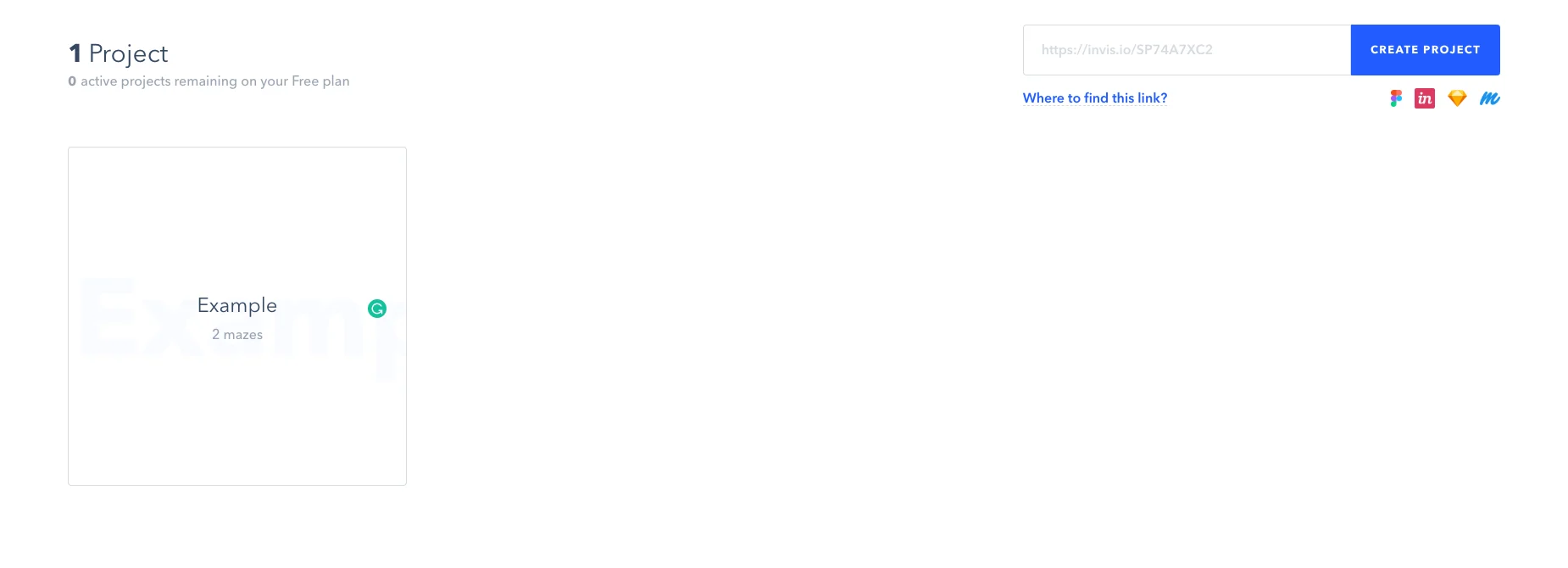
As of February 5, 2020, Maze supports Sketch, InVision, Figma, and Marvel. Paste a prototype link into the text field in the upper-right corner to create a project like the example on the left. One project per account is free. If a prototype contains sufficiently detailed features and actions, the test can produce results close to real product metrics without development work. Since Buzzvil uses Figma, I could connect an existing company prototype immediately. I would like to see ProtoPie supported later too.
2. Blocks
A researcher can create several kinds of blocks within a project and change their order.
Welcome Screen: a default landing page explaining that this is a survey
Maze provides an English introduction with a branded illustration. Customization appears to begin with the Team plan.
Mission: a usability test using the connected prototype
This is the most important block. After connecting a prototype, you register the flow, or path, that you expect. Demonstrating the prototype automatically captures each screen and builds the flow, which is convenient. You can register multiple overlapping routes, and careful setup before testing produces more accurate values. There are still some drawbacks:
- With Figma integration, overlays are recognized as screens in a UI flow but cannot be set as the completion step.
- The mobile experience has small bugs when the prototype resolution does not match the device.
- Regardless of the initially defined route, Maze considers a mission complete once the tester has viewed every screen in that route. This can produce results different from the researcher's intention.
- Multiple Choice: create a multiple-choice question
- Open Question: create a free-response question
- Context Screen: present text and images needed for the test
- Opinion Scale: create a rating using numbers, stars, or emotions
- Yes/No: create a binary question
Thank You Screen: a default landing page announcing the end of the survey
Like the Welcome Screen, it uses a Maze-branded illustration and English message. Customization appears to begin with the Team plan.
The range of block types lets you combine pieces into a survey flow suited to your purpose. Before publishing, you can use Preview to catch and correct anything you missed.
3. Publishing

Once the flow is ready, it is time to test with real users. Click START TESTING in the upper-right corner, and Maze copies the survey link to the clipboard along with a guide. Share the URL to run the blocks in the order you configured and collect mission data in several forms.
Mission blocks provide these features for each screen
- Heatmap: show where users focused most on each screen
- Misclick: show the count and location of clicks outside the expected area
- Give up: let a user abandon a mission they cannot complete
- Time spent: show how long a user remained on the screen
💡 If you do not have suitable testers for the link, Maze can recruit people in your desired category and share the results. It is expensive.
Versioning

Within one project, meaning one prototype link, you can create any number of versions, change the test flow, and publish again. This supports a strategy of testing with a small group first and distributing a larger survey after making improvements. I also plan to gather feedback from two or three teammates, then run a larger test with the improved flow.
Pricing
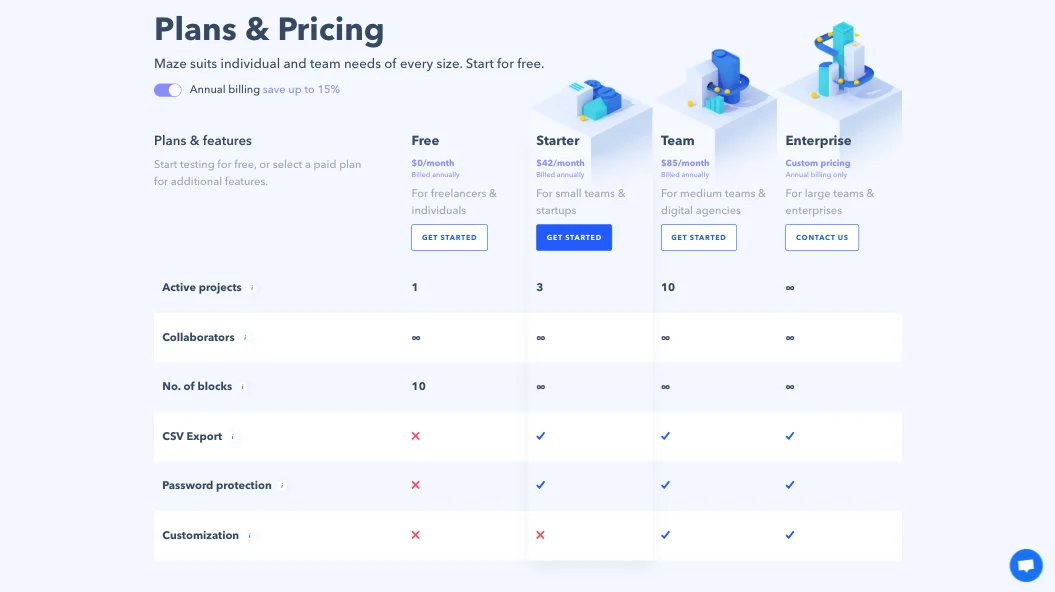
Plans range from free to custom pricing. Here is how the Free plan looks feature by feature.
Active projectsmeans the number of prototype projects currently in progress. One prototype link creates one project. On the free plan, it appears that you can archive a completed test and begin a new project, though I have not tried this and welcome corrections.Collaborationmay refer to the number of testers or researchers. Unlimited collaboration beginning on the free plan is a major advantage. Stakeholders can be invited at any time to shape the survey flow, and a well-distributed link can gather an unlimited number of testers.No. of blocksmeans the maximum number of blocks in a flow. One test step is one block. In practice, ten blocks are enough to create an excellent test. Using too many may instead raise the dropout rate.CSV Exportshould make it possible to move the results into a spreadsheet or Excel. This is useful when you want to manage Maze's user data in another database or process it in different ways.Password protectionkeeps a test secure, exactly as the name suggests.Customizationappears to support changes to the welcome and completion pages when sharing a survey. This could remove Maze branding and turn the beginning and end into surfaces for your own organization.
Outro
I am still having fun with Maze and improving the flow. My impression can be summarized simply: try Maze. It looks extremely useful for data-informed decisions.
One-line review
There are shortcomings, but the product is polished overall, easy to connect, works on both mobile and desktop, and requires no development effort, making it highly practical.
Strengths in brief
Test an existing prototype link immediately, without designing a separate prototype
Connect easily through a Figma, Sketch, or InVision prototype URL.
Mission blocks let researchers define an ideal flow
Compare it with the tester's actual path and measure several metrics in different ways.
Other blocks can provide ratings, feedback, polls, and more.
Maze judges and reports the similarity between the expected path and the user's movement.
Inspect detailed qualitative user data
- Heatmaps by screen
- Time spent by screen
- Misclick counts by screen
- The option to abandon a difficult mission
Maze can recruit testers when you do not have any
- Filter by age, gender, sample size, and other options.
- It is paid and expensive.
Versioning for each test
With the same prototype link, duplicate tests freely and compare them with earlier versions.
Apply insights from an initial analysis to later tests.
- Attractive branding
Weaknesses in brief
- The free version supports only one prototype analysis per account, and the price jump from Free to Starter is steep.
- When a Figma file has separate prototypes on multiple pages, Maze silently registers only the prototype on the highest page.
- Open overlays are treated as individual UI screens. This makes path setup awkward, and an overlay cannot complete a mission block.
- Maze considers a path complete once every registered screen has been viewed, regardless of the actual flow.
- Because a prototype is shown in a single view, mobile device ratios may not fit and some devices may hide the prototype's bottom bar.
- New blocks cannot be created between existing blocks; they must be added at the bottom and then reordered.
Thank you to designers Namkyung and Hyunji for recommending Maze.
ⓒ 2020. SangHyo Yee, All Rights Reserved.