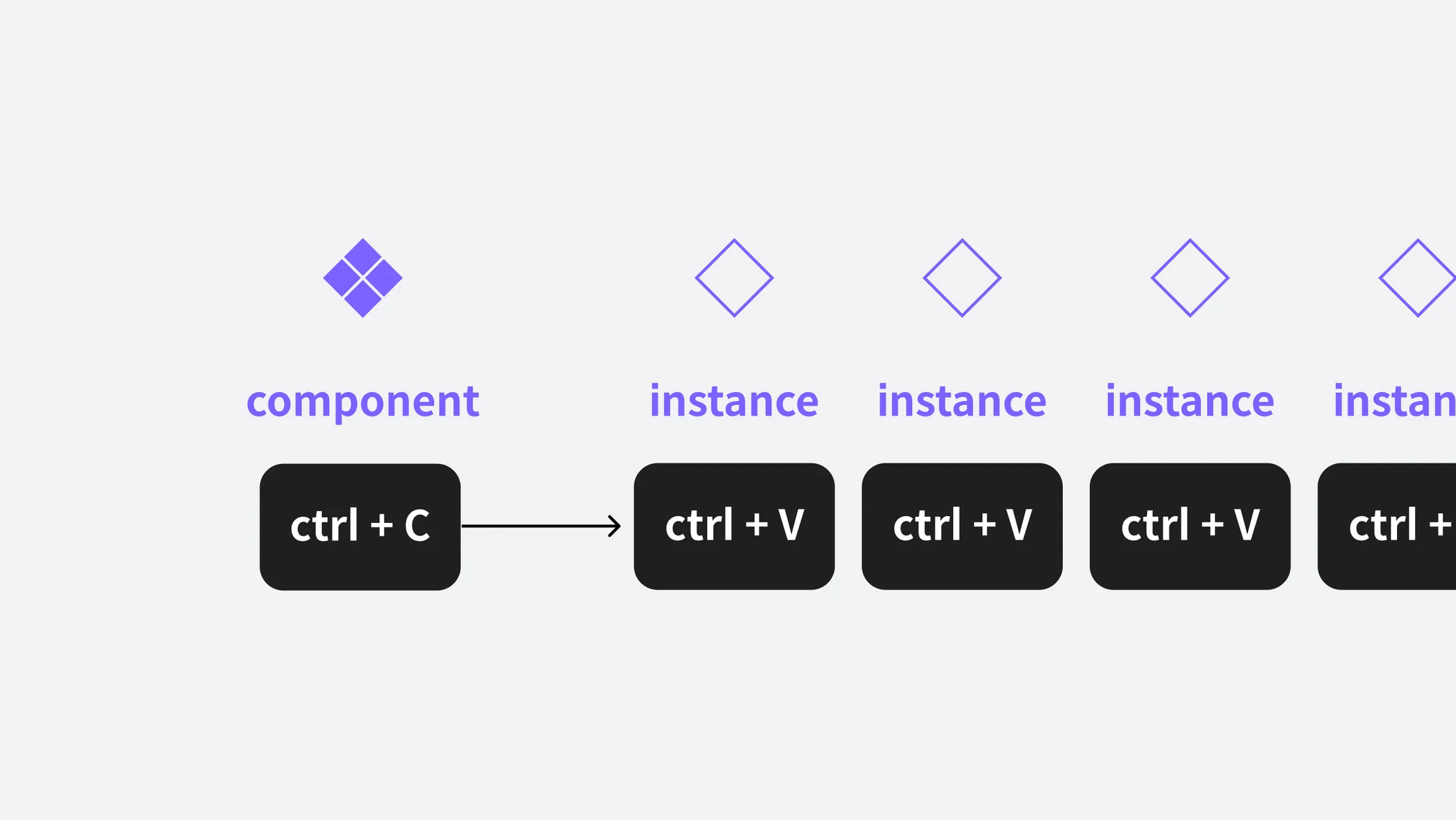
Before we begin, what do we usually do if we want to paste something we've already written somewhere else? You can easily paste with the shortcut keys Ctrl (or CMD) + C / V (hereinafter referred to as copy paste). So what do you do when you need something more than copy-and-paste, such as changing only part of the copied asset or grouping several types into one? In Figma, components systematically perform this copy-and-paste process.
Before you start
How do we usually paste something we've already written somewhere else? You can easily paste with the shortcut keys Ctrl (or CMD) + C / V (hereinafter referred to as copy paste). So what do you do when you need something more than copy-and-paste, such as changing only part of the copied asset or grouping several types into one? In Figma, components are a function that helps you perform this type of copy-and-paste work systematically. This time, we will look at the basic usage of components and examples of usage.
Main component and instance
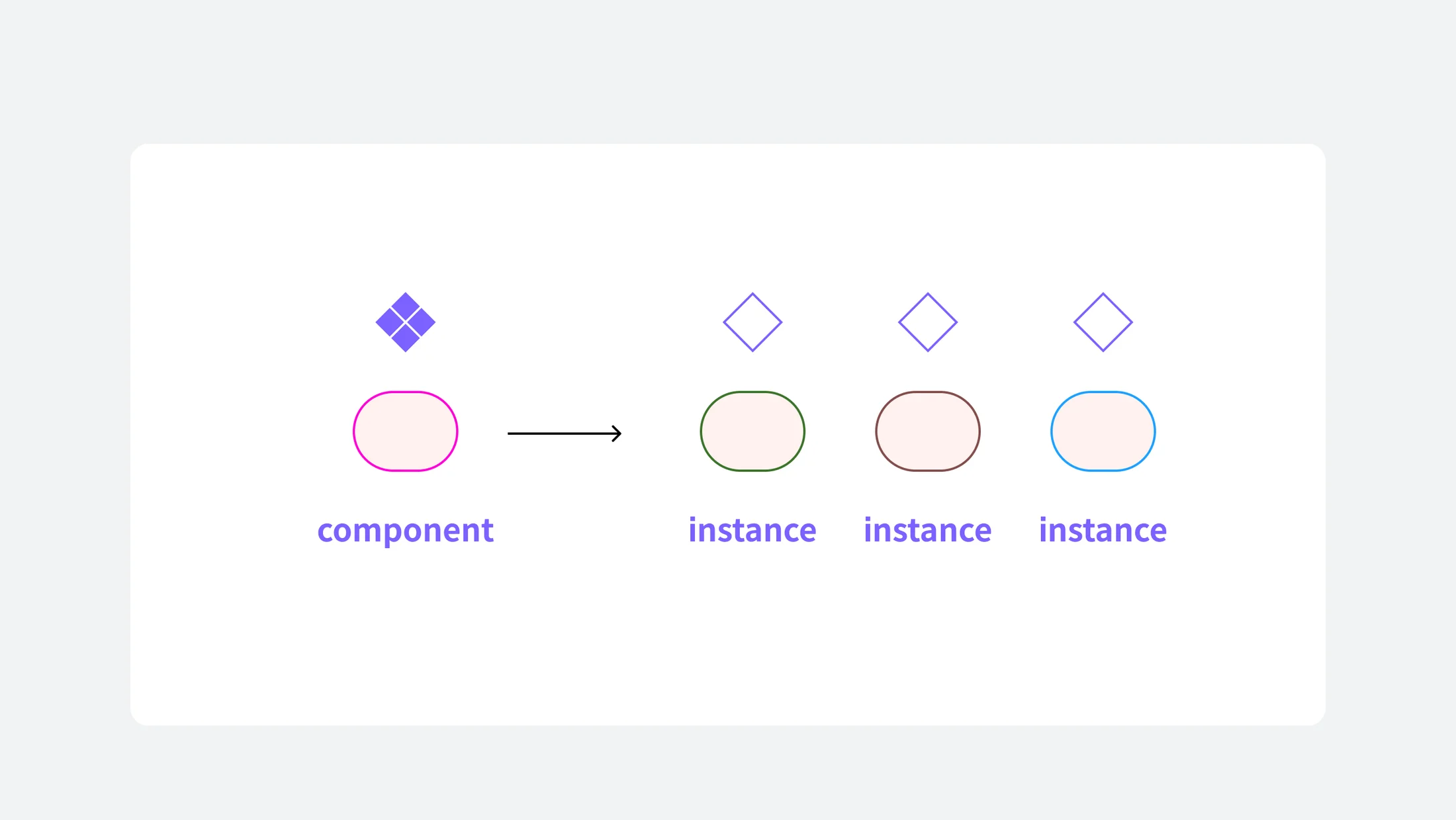
All assets created in Figma can be converted to components (original). When you copy and paste an asset that has become a component, it becomes an instance (duplicate). All instances created this way are affected by modifications to the component.
Component
Components are represented by solid diamonds, and instances are represented by hollow diamond icons. Both are displayed in purple in the left layer panel, making them easy to distinguish from other layer types. (Once an asset has been changed to a component, it cannot be returned to its original state except by [Ctrl+Z])
Instance
Instances are basically influenced by the main component. Although large layout level modifications such as changing or deleting the location of assets within an instance are not possible, detailed information such as changing the Fill and Stroke values can be changed on an individual instance basis.
Converting a regular layer into a component
Let’s check the Figma example screen. The ‘card’ on the screen is being used repeatedly, and as I work, it feels cumbersome to find and edit all the cards one by one every time I edit one. It would be nice if modifications to one card were reflected in the rest of the UI. When a single modification needs to be reflected in different UIs at once, it is very convenient to manage it using the component function. The card in the example will likely be used often when creating other UI screens, so let's make it a component.
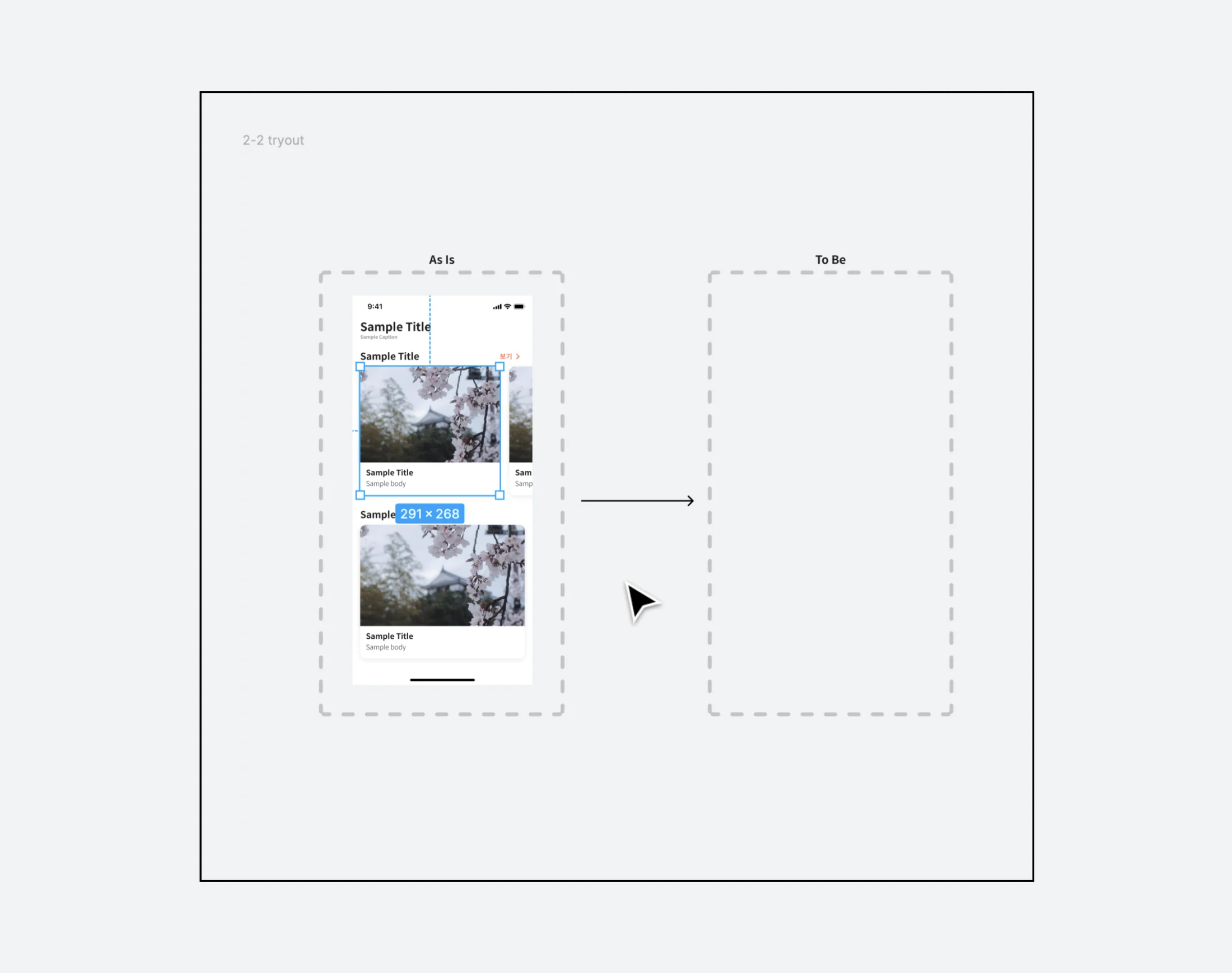
- Click to select the card section under 'Sample Title', then hold down [alt] and drag to the right to duplicate it.
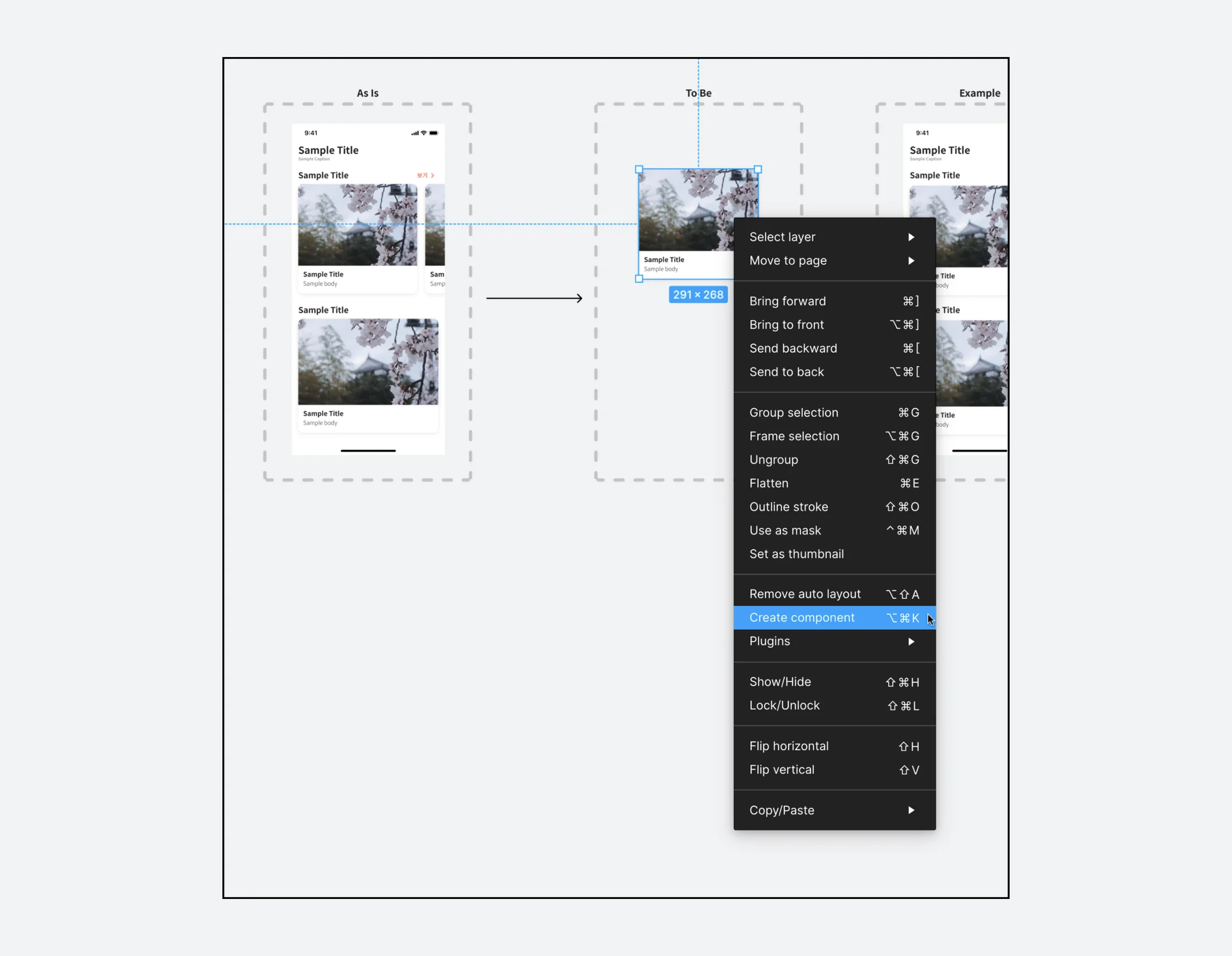
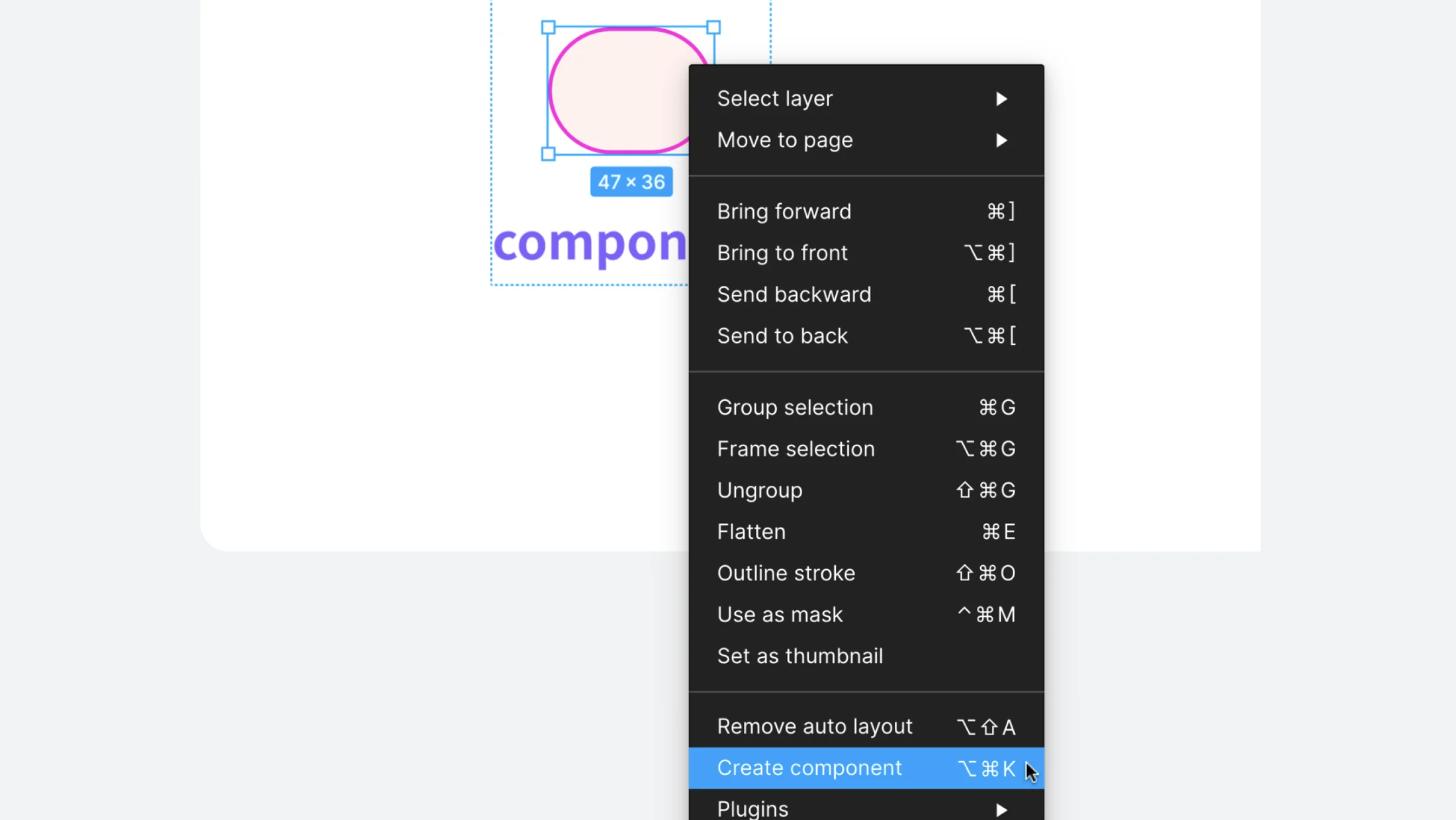
- Right-click and select [Create component]. You can run it quickly with [Ctrl + Alt + K].
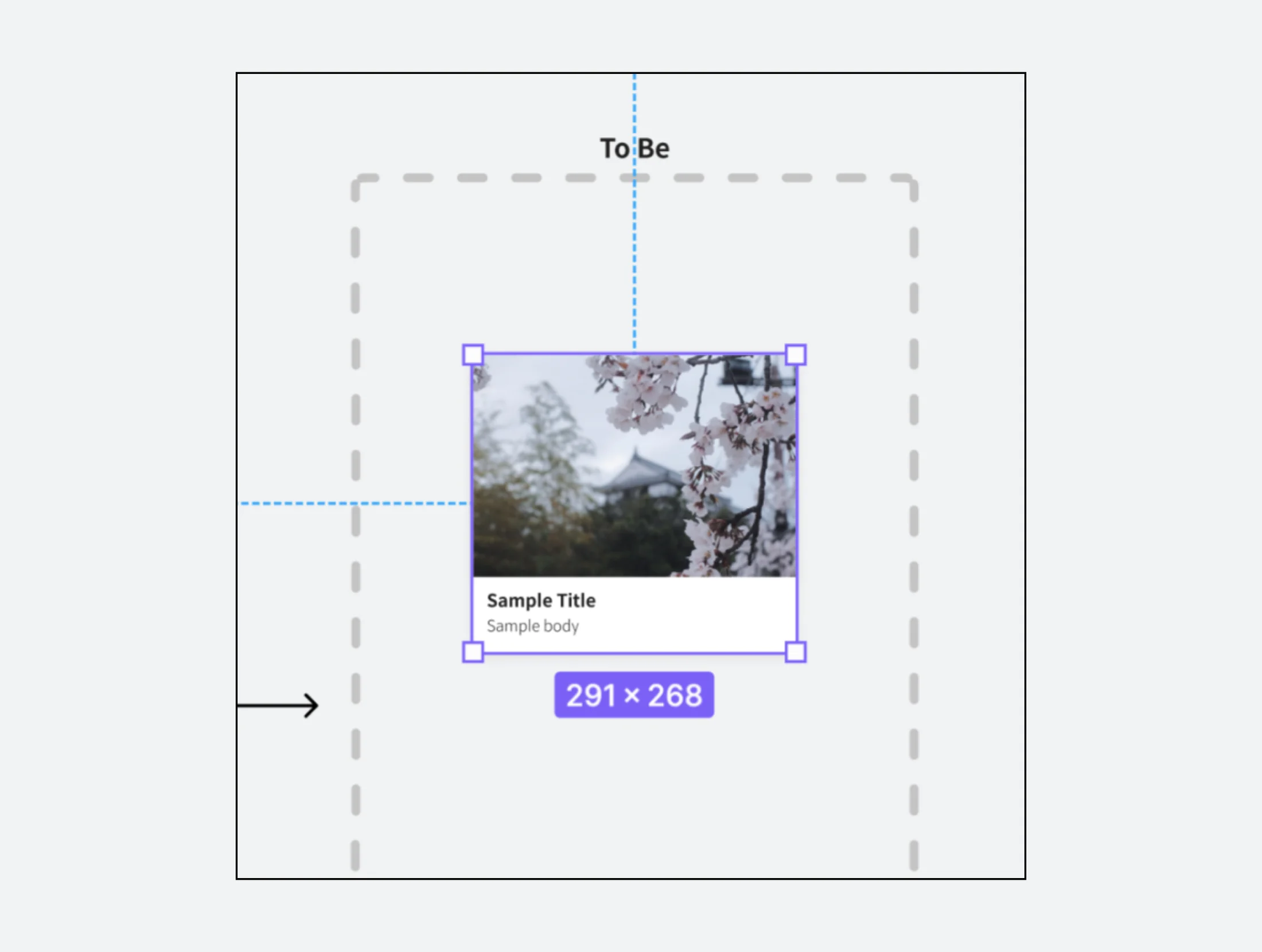
- If the card area turns purple, it is successful.
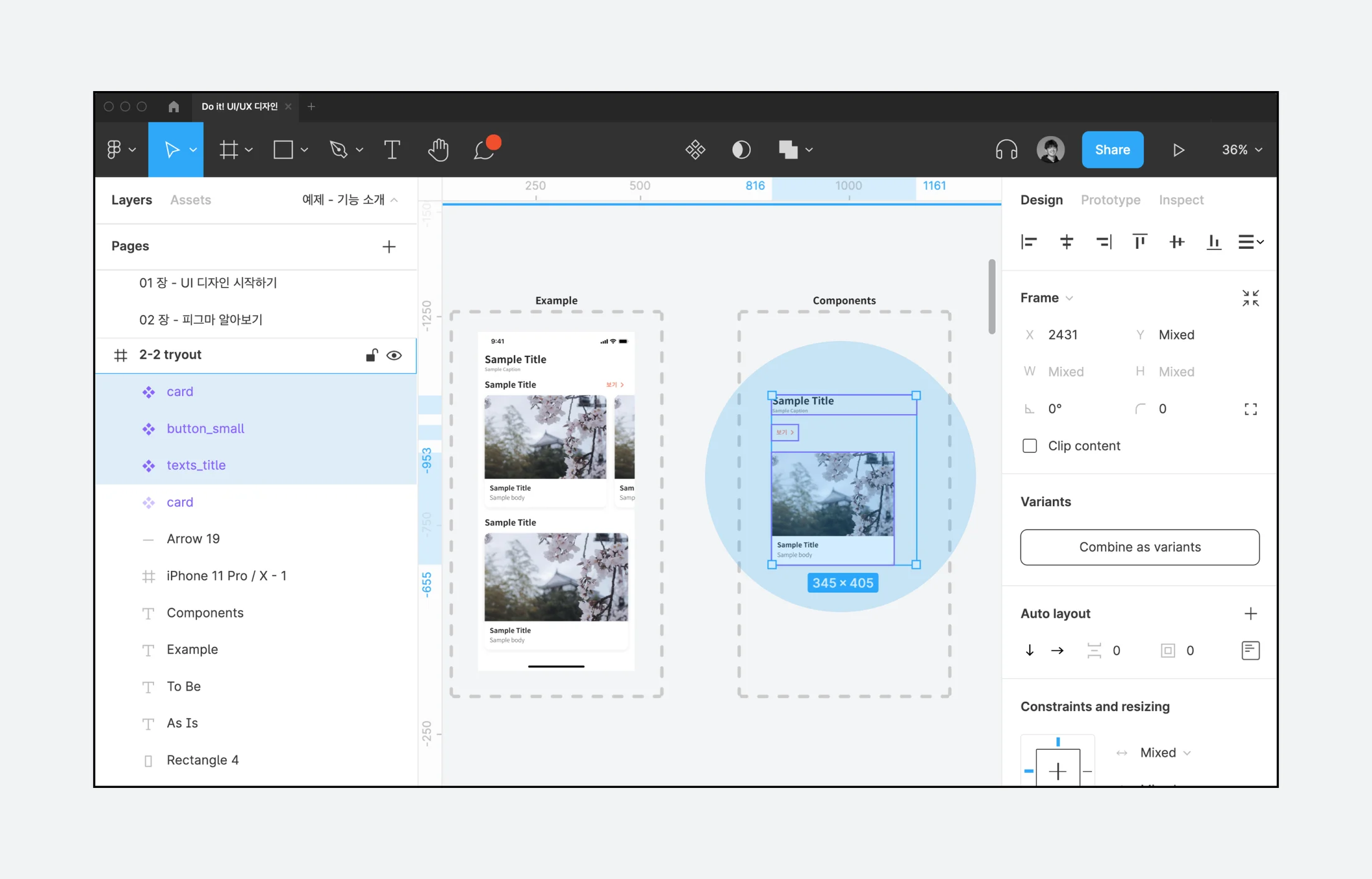
- Remove the main components separately and arrange them in similar positions. This is useful for future management. In addition to cards, it is a good idea to manage all assets that are likely to be reused later, such as buttons and texts_title, by creating them as components.
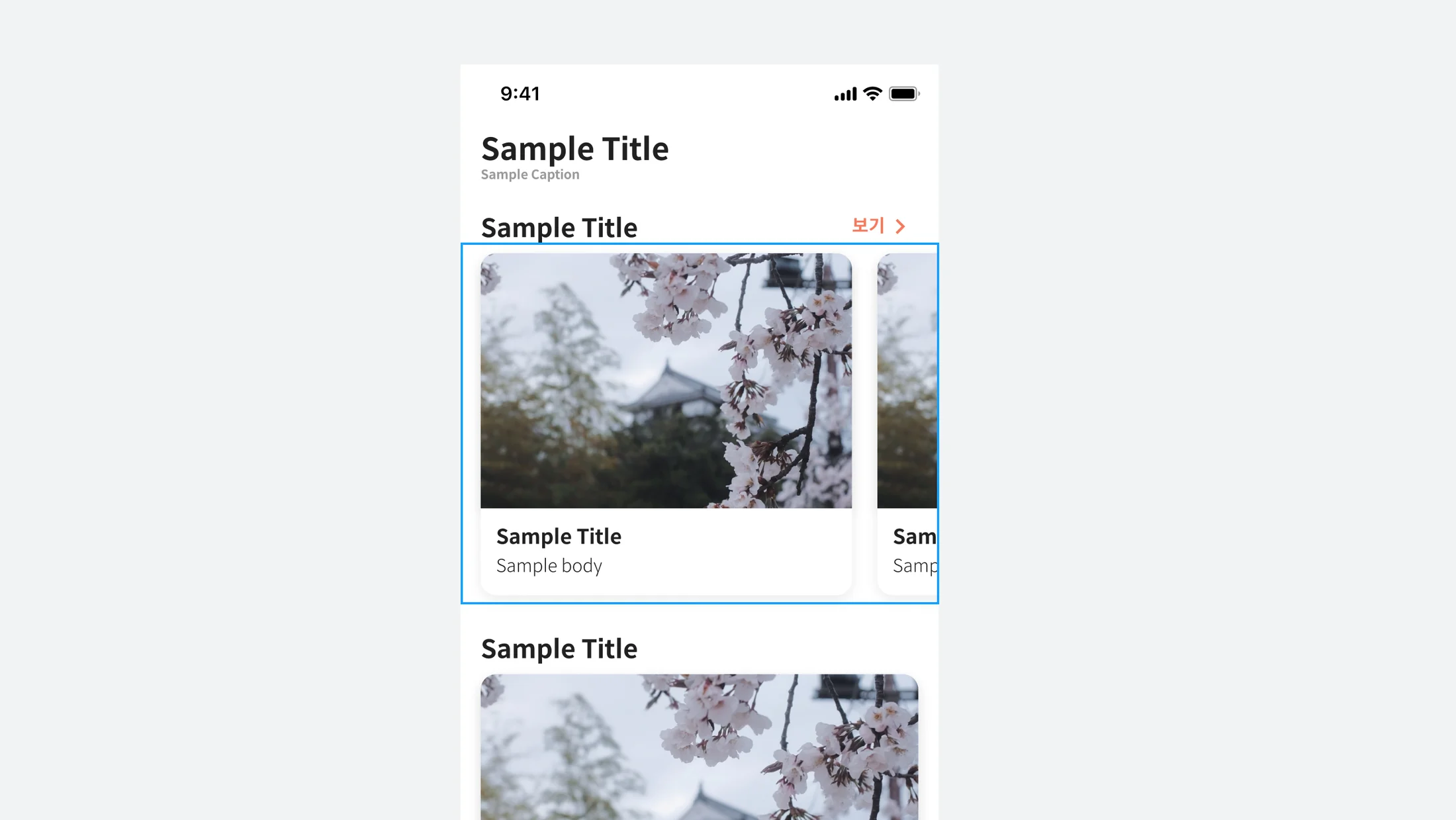
I'm curious - Carousel UI?
This UI is designed to allow horizontal swiping to show more information on one page.
Outro
So far, we have learned about the basic concepts of components and instances. To become familiar with this concept, get into the habit of managing elements that will be used repeatedly three or more times as components. You will be able to work much more efficiently.
View original text on Brunch
